Paragraph formats are used to set properties applicable to
paragraphs, such as the indentation of the paragraph and its
justification. Since the most common content of paragraphs is
text, you can also set character options within paragraphs. This
means that such settings apply to all text in the
paragraph. However, you cannot set a paragraph option in a
character format. You get an error if you attempt to do so.
This section lists and describes the available paragraph
options. You can set them in any paragraph format. As mentioned
previously, the
core paragraph format is
{paragraph ...}. When you use it without
explicitly setting any of the paragraph options, the options take
default values, which are also shown in the following table.
All paragraph options are local. That is, if you nest a paragraph
within another, or if you place paragraphs in a
Graphic,
any paragraph option that is set on the container
does
not pass through to the contained paragraph.
This is necessary since paragraph options alter the alignment and
indentation of contents in a paragraph. Since paragraphs are often
embedded in other paragraphs, and indentation-related options
specify relative values, having local paragraph options prevents
the high likelihood of obtaining unanticipated results.
|
|
|
|
|
|---|
| paragraph-left-indent | 0pt | Defines the left edge of this paragraph, relative to the
left edge of its container, which could be a graphical
object or another paragraph. | Any distance value |
| paragraph-right-indent | 0pt | Defines the right edge of this paragraph, relative to the right
edge of its container. | Any distance value |
paragraph-first-
line-offset | 0pt | The amount to indent the first line of this paragraph from its
own left edge, which is defined by paragraph-left-indent.
A positive value specifies that the first line begins from a point to
the right of its left edge. A negative value specifies it begins from
a point to the left of its left edge. | Any distance value |
| paragraph-justify | "left" | Justification. | One of the following: |
| | | Aligns the left edge of this paragraph
with its container's left edge. | |
| | | Centers the paragraph within its container. | |
| | | Aligns the right edge of this paragraph
with its container's right edge. | |
| paragraph-line-spacing | 0pt | The amount of spacing between lines. | Any distance value |
| paragraph-before-spacing | 0.6em | The amount of spacing preceding this paragraph. | Any distance value |
| paragraph-after-spacing | 0.6em | The amount of spacing following this paragraph. | Any distance value |
The following example shows the effect of the paragraph indent options.
Note: The paragraph-first-line-offset option specifies space
relative to the left edge of the paragraph, as defined by the
paragraph-left-indent option.
| Example:
Paragraph Indent Options |
 |
{Frame
    background = "pink",
    {paragraph
        paragraph-first-line-offset = 0.25in,
        This paragraph's container is a Frame. Since this
        paragraph's left indent is not set, the default, 0, takes
        effect, which aligns it with the Frame's left edge.
        Hence the first line offset is 0.25in to the right of
        the pink edge.
        {paragraph
            paragraph-left-indent = 0.25in,
            paragraph-first-line-offset = 0.25in,
            This paragraph is nested in the previous paragraph, so the
            left indent setting is relative
            to the previous paragraph's left edge, which happens to be
            the same as the Frame's left edge. And its first line offset
            is, in turn, relative to it. }
        {paragraph
            paragraph-left-indent = 0.25in,
            paragraph-first-line-offset = -0.25in,
            About this paragraph: This paragraph is a sibling of the
            previous one.
            Its left indent is the same as its sibling, but its first
            line offset setting is a negative value, which means that
            the first line is offset to the left of this paragraph's left
            edge. See the effect?}
        {paragraph
            paragraph-justify = "right",
            paragraph-right-indent = 0in,
            This paragraph is right aligned but has no right indent.
        }
        {paragraph
            paragraph-justify = "right",
            paragraph-right-indent = .25in,
            This paragraph is right aligned and has a right indent.
        }
    }
}
| |
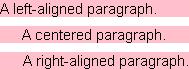
The following boxes have left, center, and right-aligned text.
| Example:
Aligning paragraphs with paragraph-justify |
 |
{TextFlowBox
    width = 5cm,
    background = "pink",
    {paragraph
        paragraph-justify = "left",
        A left-aligned paragraph.
    }
}

{TextFlowBox
    width = 5cm,
    background = "pink",
    {paragraph
        paragraph-justify = "center",
        A centered paragraph.
    }
}

{TextFlowBox
    width = 5cm,
    background = "pink",
    {paragraph
        paragraph-justify = "right",
        A right-aligned paragraph.
    }
}
| |
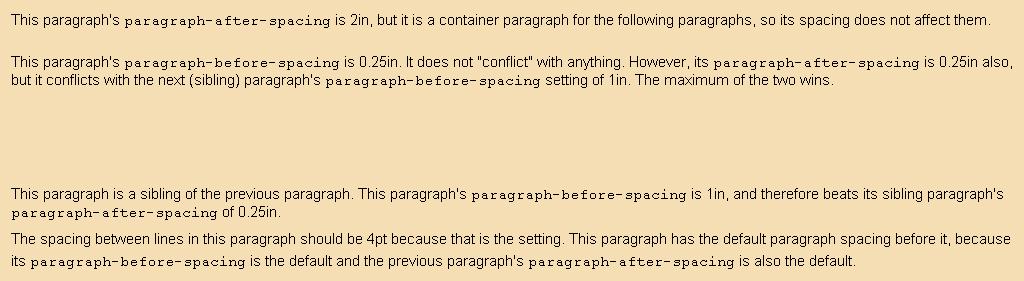
The following example shows the effect of the paragraph before and
after spacing options, which specify the amount of space between
paragraphs. Note that the maximum space is used in the case of
conflicting space settings.
This example also shows the effect of the
paragraph-line-spacing option, which specifies the
amount of space between lines within a paragraph.
| Example:
Paragraph Spacing Options |
 |
{Frame
    background = "wheat",
    margin = 8pt,

    {paragraph
        paragraph-after-spacing = 2in,

        This paragraph's {monospace paragraph-after-spacing} is
        2in, but it is a container paragraph for the following
        paragraphs, so its spacing does not affect them.

        {paragraph
            paragraph-before-spacing = 0.25in,
            paragraph-after-spacing = 0.25in,

            This paragraph's {monospace paragraph-before-spacing}
            is 0.25in.  It does not "conflict" with anything.
            However, its {monospace paragraph-after-spacing} is
            0.25in also, but it conflicts with the next (sibling)
            paragraph's {monospace paragraph-before-spacing}
            setting of 1in. The maximum of the two wins.
        }
        {paragraph
            paragraph-before-spacing = 1in,

            This paragraph is a sibling of the previous paragraph.
            This paragraph's {monospace paragraph-before-spacing}
            is 1in, and therefore beats its sibling paragraph's
            {monospace paragraph-after-spacing} of 0.25in.
        }
        {paragraph
            paragraph-line-spacing = 4pt,

            The spacing between lines in this paragraph should be
            4pt because that is the setting.  This paragraph has
            the default paragraph spacing before it, because its
            {monospace paragraph-before-spacing} is the default
            and the previous paragraph's {monospace
            paragraph-after-spacing} is also the default.
        }
    }
}
| |
As with the predefined character formats, predefined paragraph
formats provide a means of getting the type of paragraphs you want
without having to set options. The following table lists and
describes them.
Note: If you want to create a paragraph with the default settings, you
need not enclose the text within any paragraph format. By leaving
a blank line (2 enters) between blocks of text, you
are specifying that an old paragraph has ended and a new one has
begun.
The following example demonstrates some of these paragraph
formats.
| Example:
Demonstration of Paragraph Formats |
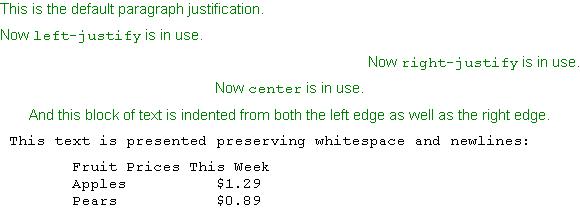 |
{paragraph color = "green", This is the default paragraph justification.}
{left-justify color = "green", Now {monospace left-justify} is in use. }
{right-justify color = "green", Now {monospace right-justify} is in use. }
{center color = "green", Now {monospace center} is in use.}
{blockquote color = "green", And this block of text is indented from both
            the left edge as well as the right edge.}
{pre
 This text is presented preserving whitespace and newlines:

        Fruit Prices This Week
        Apples          $1.29
        Pears           $0.89
}
| |
pre is a paragraph format that displays its content
exactly as it appears in the source document, preserving
whitespace and newlines.
pre does evaluate
Curl® language expressions; to prevent evaluation place
the expression inside the verbatim strings:
|" and "|
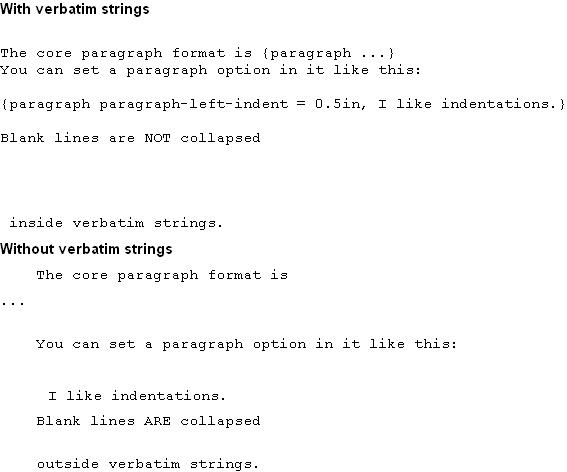
Refer to the following example. Notice that none of the Curl
language expressions (in curly braces) are evaluated. Also note
that, although pre preserves whitespace, it does not
preserve blank lines. As with the other text formats, blank lines
within pre are collapsed.
The next example shows the use of pre without verbatim
strings.
| Example:
pre with and without Verbatim Strings |
 |
{paragraph
    {bold With verbatim strings}
}
{pre |"
The core paragraph format is {paragraph ...}
You can set a paragraph option in it like this:

{paragraph paragraph-left-indent = 0.5in, I like indentations.}

Blank lines are NOT collapsed


 inside verbatim strings."|}

{paragraph
    {bold Without verbatim strings}
}
{pre
    The core paragraph format is {paragraph ...}
    You can set a paragraph option in it like this:

    {paragraph paragraph-left-indent = 0.5in, I like indentations.}

    Blank lines ARE collapsed


    outside verbatim strings.    }
| |
heading is a special paragraph format that keeps track of
the sequence of other headings in the same document, and formats
them as appropriate.
- The sequence it keeps track of can be used by the
document containing them. (It depends on which Document is in use. For example, TocDocuments uses
this information to display tree nodes on the left side of the
page.)
- The formatting performed is limited to setting the font-size
of paragraph's contents.
The syntax of heading is:
| Syntax: | {heading level = number, content}
|
| where: | - number is any integer beginning at 1,
indicating the level of the section.
- content is the content of the heading.
|
The font sizes are set as follows:
| Heading level | Font Size | Visual Presentation |
|---|
| 1 or none | 2em | Heading Level 1 or None |
| 2 | 1.5em | Heading Level 2 |
| 3 | 1.3em | Heading Level 3 |
| Greater than 3 | 1.2em | Heading Level Greater than 3 |
numbered-heading is similar in syntax and functionality
to
heading, described in the previous section. The
numbered-heading format includes numbers that indicate the
heading's section number and structural level before the heading
text.
The syntax of numbered-heading is:
| Syntax: | {numbered-heading level = number, content}
|
| where: | - number is any integer beginning at 1, indicating the
level of the section.
- content is the content of the heading.
|
The following example shows numbered-heading. Note that
every time you execute the example, you create new level 1
headings, which increments the section number.
| Example:
numbered-heading Demonstrated |
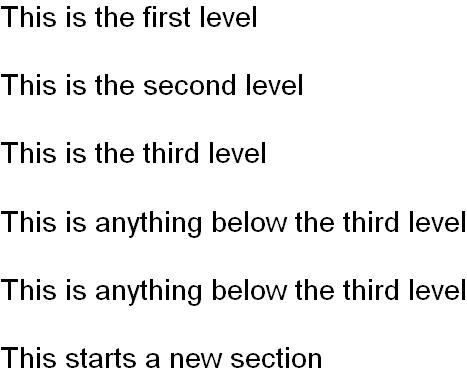 |
{numbered-heading level = 1, This is the first level}
{numbered-heading level = 2, This is the second level}
{numbered-heading level = 3, This is the third level}
{numbered-heading level = 4, This is anything below the third level}
{numbered-heading level = 5, This is anything below the third level}
{numbered-heading level = 1, This starts a new section}
| |
You create a bulleted list by enclosing a sequence of
item expressions within an
itemize expression, using the
following syntax:
    {itemize [marker = marker value,]
            {item item's content}
            {item item's content}
        }
There are no commas separating the
items. The
marker option allows you to specify the visual object (called a
marker) to be placed before each item. By default, each
item in the list is preceded by the
{bullet}
character format. You can change the value of the
marker
option to whatever you want. See
marker for
further information and additional examples.
In most cases, when you use a bulleted list, it relates to the
paragraph preceding it. If that paragraph is indented in a certain
way, and you want to ensure that the bulleted list is
appropriately indented relative to it, embed the entire
itemize block in the paragraph preceding it.
| Example:
Bulleted List Indentation |
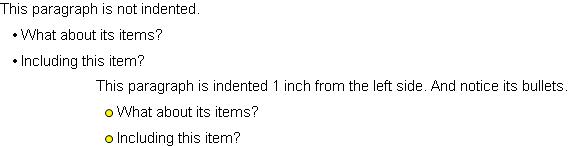 |
{paragraph
    This paragraph is not indented.
    {itemize
        {item What about its items?}
        {item Including this item?}
    }
}
{paragraph paragraph-left-indent = 1in,
    This paragraph is indented 1 inch from the left side.
    And notice its bullets.
    {itemize marker = {EllipseGraphic width = 2mm, height = 2mm},
        {item What about its items?}
        {item Including this item?}
    }
}
| |
Numbered lists are specified very similarly to bulleted
lists.
enumerate serves as the container list, and it
contains
items. Use the following syntax:
    {enumerate
            {item item's content}
            {item item's content}
        }
There are no commas separating the items. Each item in
the list is preceded by a number. The first item in the list is
numbered 1., and each subsequent item is incremented by
one. To ensure that the numbered list is appropriately indented,
relative to the paragraph preceding it, embed the enumerate
block in that paragraph.
| Example:
Numbered List Indentation |
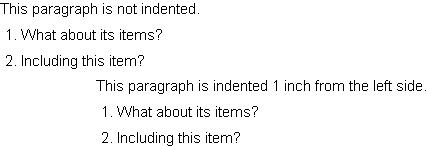 |
{paragraph
    This paragraph is not indented.
    {enumerate
        {item What about its items?}
        {item Including this item?}
    }
}
{paragraph paragraph-left-indent = 1in,
    This paragraph is indented 1 inch from the left side.
    {enumerate
        {item What about its items?}
        {item Including this item?}
    }
}
| |
A definition list indents a sequence of terms and definitions. Use
the following syntax:
    {definition-list
            {term term-content}
            {definition definition-content}
            {term term-content}
            {definition definition-content}
            ...
        }
There are no commas separating the terms and
definitions. The following shows an example
of a definition list in use. The color of the font is
explicitly set.
| Example:
Definition Lists |
 |
{definition-list
    color = "maroon",
    {term Character Format}
    {definition A text format that sets one or more text character
                properties such as the font size, font style, and so on.}
    {term Paragraph Format}
    {definition A text format that sets one or more paragraph properties
                such as paragraph indentation, spacing after a paragraph,
                and so on.}
}
| |
Copyright © 1998-2019 SCSK Corporation.
All rights reserved.
Curl, the Curl logo, Surge, and the Surge logo are trademarks of SCSK Corporation.
that are registered in the United States. Surge
Lab, the Surge Lab logo, and the Surge Lab Visual Layout Editor (VLE)
logo are trademarks of SCSK Corporation.